logo  
     
  HOME | ABOUT US | COMPUTER SERVICES | COMPUTER REPAIRS | NEW COMPUTERS DIRECT | DATA RECOVERY | CONTACT  
 

How secure is your password?

December 23rd, 2008

I seen a password on a computer recently that comprised 3 letters of the alphabet. Can you guess which three? This was a computer in a small business that did payroll, banking, and was the main MYOB retail server. Geesh. Anyway….

So, for those who want to know just how secure their passwords are you can use this password checker. It’s gives a rating between poor, to good and best. It is a non-recordable password tester from Microsoft.

Internet Explorer Patch MS08-078

December 18th, 2008

This out of band patch is now available through Windows updates.

Here’s the patch direct link.

The Windows Vista Slide Show

December 14th, 2008

slide-show-img.JPG

The Windows Photo Gallery is a really useful feature in Vista to create a slideshow of your product range to prospective clients on your notebook PC, or create an impressive slideshow of your wedding pictures on your widescreen monitor.

This is really easy to setup and change configuration settings. You can go to start >all programs >Windows Photo Gallery, or start >type “Windows Photo Gal” (without the quotation marks) and it should come up as first item in the search results.

Launch the Photo Gallery, ctrl + click all the images you want to incude as a slideshow and then click the gallery start. The gallery will launch into a full screen.

You can change various aspects of the slide show using the menus.

You don’t have permission to save in this location

December 8th, 2008

A problem we’ve been seeing when a hard drive is formatted in Windows XP and now running a Vista upgrade is:

You don’t have permission to save in this location. Contact the administrator to obtain permission. Would you like to save in the documents folder instead?

The solution is to format the drive again. Big effort and requires recover and restore of all your files.

An easier solution /workaround is to locate the executable (.exe) file inside the programs folder for example, right click this executable, choose the compatibility tab, in the lower section you will see “run as administrator”. Check this box to always run this program as administrator.

You should now be able to save the document in the location.

DEP - Blocking unwanted programs in Vista

November 23rd, 2008

dep.JPG The UAC (User Account Control) prompt in Windows Vista is a security tool to prevent unauthorized access to the system. The problem I find in the field is that there will always be a percentage of users who will click “continue” = (please allow this malicious code to run on my PC because I really don’t know any better). It may also be difficult to manage the security of a computer when it is accessed by multiple users, and you need a secure computer on your network or in the office. There is a solution to this problem. It is a fiddly, requires familiarity with the mouse and navigation in Vista, but if you want to lock down Vista and prevent malicious code from running DEP is your answer.Data Execution Prevention has been around since Windows Server 2003 and monitors the way programs use system memory. If the program attempts to access memory in an unsafe fashion, DEP closes it down. If the program has a valid ActiveX Control it should execute correctly. If it will not install or run and you know this program is safe you can add it to the DEP allowed list. The computer needs to be restarted after DEP changes. Not every program that is blocked by DEP is malicious or spyware but if DEP is monitoring the program it can detect attempts to execute code from protected memory areas, and help to mitigate the threat of attacks.If DEP closes the program you know is safe, try checking for a DEP capable version of the program or contact the vendor before changing DEP settings.To access DEP settings and add or remove programs from the allow list:

·         Go to start ·         Right click computer ·         Select properties ·         Select advanced system settings ·         Note the UAC prompt and continue ·         Select the advanced tab ·         Select the performance tab > settings ·         Select data execution prevention ·         DEP is turned on for essential Windows programs and services only by default – choose to turn on DEP for all programs ·         Restart the computer ·         If a new third party program does not run and is blocked by DEP specifically you can add it to the list by (A) turning off DEP, restart PC, install new program, turn on DEP and add the exe of the program to the DEP list, restart PC. We turn on DEP on request or for some security scenarios on our new computers. A program blocked by DEP does not always notify you. DEP is not for everyone but is highly effective if you need advanced security.      

How to repair Vista startup problems

November 5th, 2008

The Windows Vista Recovery Environment can be useful in restoring system files affecting startup.

To use this feature:

1. Boot from the Vista Boot DVD

2. scroll through to choose a recovery tool

3. Statup repair can replace or repair corrupted system files. This is the first option shown

If startup repair is not able to resolve the issue and allow you to boot into Windows you will see the a dialogue window explaining that the repair was not successful along with problem details.

At this point you should contact your IT Admin or call tech support.

MS Office Students Ultimate Offer $75

November 4th, 2008

office-ultimate1.JPGEven the usual Student edition is twice this price, though I’m not sure why the Microsoft promotion is for Ultimate and not the Basic or Pro version. So just don’t use the bits you don’t need like Groove and Infopath. But it has all the other programs such as Word, Excel, Powerpoint, Publisher, Outlook.

You can buy it at itsnotcheating.com.au and the offer is extended for a little longer.

3 ways to recognize email scams

November 1st, 2008

I get those emails that look like they come from my bank asking me to confirm my account details, or even threatening to suspend my account if I do not click this link NOW! I could say these emails are very good imitations complete with logo and contact details, legal disclaimer etc, except I have never received an email of any description from my bank. Banks send letters for notices and such.

I am used to dealing with these emails like everyone else with an email address but the email I received the other day was different. It made sense in a way. We use certificates on servers to enable secure access, so why not banks? The email informed me the bank was changing over to a certificate based system for login to internet banking. A link invited me to download a customer certificate - all in the name of better security. The certificate would recognise my computer by way of the certificate.

Aside from knowing banks do not, (1) would not send an email for such a big security change, there was was the spelling (2) mistakes. Server was spelt serve for example. Banks have and use spell and grammar checkers. I get spelling mistakes on school newsletters and even the education department letters, but never on a bank letter or legal documents.

Then I closed the email, right clicked it and selected message options (Outlook 2007). Scrolling down past the delivery path of my own ISP and its spam filters, I see the return address (3) is xhjkgs@excite.com. The return path / originating path could also be blank. Real emails have real addresses.

In my case the scam targetted ANZ bank customers so i rang 131314 and reported it to bank security.

Top 10 Windows Optimization Tips

October 28th, 2008

Windows is not the only software that comes bloated out of the box, so many of our popular applications, antivirus programs, and proprietary systems are slowing our computers down. We’ve been complaining and they seem to be listening. Thankfully, the tide is changing for bloated programs and operating systems. The new Windows 7 OS is trimming down starting with the MinWin microkernel, and this thinking is being echoed across the board by the major AV vendors and others. Recent technologies such as multiple cores and 800/1066MHz memory have the potential to make our computers blistering fast and responsive, if only we can get the monkey of its back.

So, while the future looks brighter performance-wise, there’s plenty we can do right now to optimize computers whose performance is lagging. These simple tips are often overlooked in the search for trendy tweaks and removing useful features for the sake of what is sometimes a negligible performance boost.

Top 10 Optimization Tips for Windows XP:

  1. RAM - 1gb is the new minimum. 3gb is the upper 32bit limit. Overdoing it can cause stability issues. The old adage that you can never have enough ram is outdated..
  2. Ensure your new RAM modules match as pairs for type, speed etc. Check the motherboard specs for optimal placement of RAM. Check your BIOS is enabled for dual memory configuration. Check your page file is set for matching initial and maximum size (RAM X 1.5)
  3. Adjust the default system setting in Vista for system performance to background services instead of programs.
  4. Visit the Windows update site and choose custom updates; in the left hand pane look for updates in the 3 options shown; visit Office update separately. Updates (patches) can act as tune-ups.
  5. Run CHKDSK from disk tools with find and repair boxes checked, and defrag XP.
  6. Remove bloated antivirus and replace with NOD32 from ESET.
  7. Use the disk tools (drive letter: properties >tools) to clear out all the temp and redundant files being careful not to remove Office installation files
  8. Check you have adequate drive space for maintenance operations; reclaim disk space; remembering that defrag does not free up disk space, removing or deleting data does. You need significant free space on the volume if you run database type programs, but typically around 15-25% on standard systems.
  9. Run spyware/malware scans; reset IE7 (tools>options>advanced>reset).
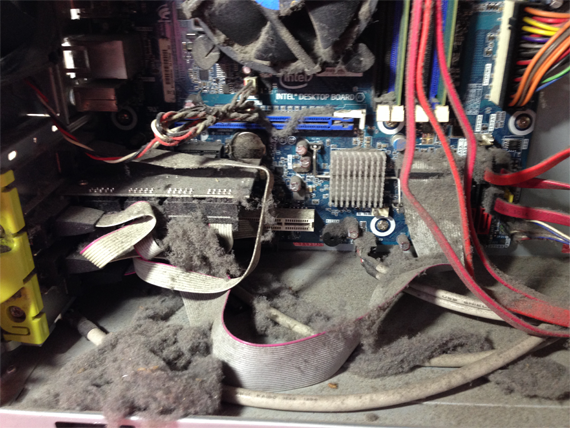
  10. On older XP machines running slowly can also be the result of dust build up. Additional symptoms are excess fan noises, spontaneous restarts.

Next: optimization for Vista.

learning to love Vista

October 16th, 2008

I’ve been around for a few new Windows releases starting with Windows 98 and it’s nothing out of the ordinary to see new OS’s greeted with walls of resistance from technology reviewers, enterprise adoptors, and small business. It’s always been fashionable to knock Microsoft and for some reviewers it can border on hysterical, like this guy at The Observer in 2001.

“…Windows XP is a montrous, bloated brute that requires state of the art PC and 2gb of hard disk space before it will even say ‘hello’”

Personally, I love Vista. The features that have made my life easier simply aren’t there in XP. Besides, I prefer progress over being able to use my 6 y.o HP printer. Vista service pack 1 has fixed most of the issues and gripes including slow performance over the network, Explorer hangs, and security improvements. The problems I see in the field now are mostly related to application compatibility and lack of knowledge to install backwards compatibilty.

Firstly, Vista offers the choice of two account types: standard or administrator. The latter is a standard account with administrative rights, but is still a standard account. In XP an admin account had full user rights locally. This is a security feature in Vista which launches those UAC prompts. If you want to run a legacy program (such as my accounting program I bought in 2005 which runs fine on Vista) you will need to know the options and procedures to elevate privileges and install legacy programs. The options generally run in this order:

  • contact the vendor to see their articles on Vista installation, program or driver updates
  • Run As Administrator (To launch a program with elevated privileges right click the exe or setup file and choose “Run as Administrator”)
  • Use the Vista Compatibility Assistant (right click setup file, properties, compataibility tab)
  • Use Vista Compatibility Wizard (follow this path >start >control panel >click programs >then choose “Use an older program with this version of Windows”)

I’ll be posting more on learning to use Vista.


Archives

Categories

Add this RSS Feed RSS Feed | RSS Feed for Comments
 
LOGO

Onsite Service

1300 661 624
   
 
MCP Windows Vista Logo
  We provide comprehensive services for the new Windows Vista operating system.
   
  samsung monitor
 

We Build & Sell New PC's

  Forget about offshore helpdesk or back to manufacturer warranty. We offer onsite warranty.
  >>Visit New Computers
   
line    
©2008 Wired Office    
Site Map | Disclaimer | Warranty | Payment Options | Contact