The Wired Office Blog


How to resolve Windows 7 backup errors

Windows 7 has great new backup fatures in the business (professional) editions such as the ability to backup an image of the drive, in addition to file level backup. The best practice scenario is to do both, but with image backup turned off (unchecked) in the file level scheduled backup settings. Manually creating a backup image helps to mitigate risks associated with imaging an unstable system.

The new Win7 library feature allows you to add drives or folders to the library index but we have seen problems causing backup errors with reparse point folders added to the library. Win7 does not traverse reparse points but nodes added to the library as an added library item will be traversed. If you experience backup failed errors look in the library list in Windows Explorer and uncheck any added folders or external drives to test if this is causing the issue.

We have also seen backup errors occur when a folder container with music or videos is stored outside of the system designated music or video folder, such as on the desktop.


Sending large attachments that won’t get lost

Acrobat Extension for sending attachments

Send Large Attachments with Outlook 2007

The Bigpond limit for email attachments is around 10mb. Anything over this size might be stripped out by the receiving server so your recipient never sees the attachment. Because of binary data conversion in email programs an attachment can be bloated by up to ~30%, and the content of the HTML email also needs to be factored in to the overall size of the sent item.

Programs for sending attachments at http and ftp have been around for a long time, such as usendit and others. Acrobat now offer a free program for sending large attachments that integrates nicely into Office Outlook 2007. Once installed you have the options for sending attachments like you normally would, or via the Acrobat plugin. What we like about this offering from Acrobat is it’s free, and the brand name is familiar to most internet users.


Windows Home Server for small business file sharing & backups

Small and micro business with 3 and up to 10 computers on the network, can avoid the costs associated with full server installations by using Windows Home Server for file sharing and automated backups.

Using a workgroup network often means backing up data from individual machines. This is a problematic way to backup data because backups are forgotten, or not backed up correctly causing problems when restoring from the backup.

Windows Home Server is a low cost solution (our Home Server with licences for 10 users is $1130 inc gst at time of writing) for small networks wanting the efficiency and centralised data storage of a server without the overheads of contract IT support services.


Dual Link DVI demystified

There seems to be a lot of confusion, both in retail stores and in the forums, about what Dual Link is and when you need to know about it.

Single link connections are most common, though many video cards now support dual link. A DVI single link computer monitor can display a resolution of 1920 x 1200. My Panasonic 42″ Plasma television is HD and has a screen resolution of 1024 X 720. Some much larger TV’s have screen resolutions of 2560 x 1600. If you’re using a HTPC (connecting your computer to your TV as a media center TV) you should check your user guides to see what resolution your TV is and whether it supports Dual Link. If there is no mention of Dual Link then it most likely doesn’t support Dual Link.

Dual Link requires the correct cable and, while not being directly related to screen image quality, you can have high resolution capability and higher (faster) refresh rates.

We have found Jemmell Cables in Australia to be a good source of online cables and advice.


Shortcomings of File Encryption in Windows 7 (EFS)

In Windows 7 Professional you can encrypt either files or folders and keep specific information private from other users. Encrypted files may become unexpectedly decrypted so it is best practice to encrypt folders which hold the files you want to keep private and secure.

To encrypt a folder:

  • Right click the folder and open its properties
  • Click advanced on the General tab
  • Select “Encrypt contents to secure data”
  • Press ok
  • Encrypting sensitive data, bank account or credit card details, also helps keep your data safe if your computer is hacked or stolen. For example, if your hard drive is removed and installed as an external drive in another computer your encrypted data is still safe – well sort of.

    EFS is Microsoft software designed to work in the NTFS file system. Encrypted files will stay encrypted as long as the data is on a NTFS formatted drive. If the EFS folder is copied to a USB thumb drive formatted in the FAT file system the folder loses its encryption properties.

    Managing EFS recovery keys and certificates.
    If the hard drive on your PC becomes damaged and you need to recover data outside of your usual profile you will need to have “recovery keys and certificate” available. You will need to store this information off the drive with the EFS such as a thumb drive.

    To backup your Recovery Keys and Certificate in Windows 7 Pro

  • Press the start key on your keyboard and type “manage file encryption certificates”
  • Follow the prompts and choose your password carefully
  • An Alternative to EFS shortcomings is Bitlocker
    Another more secure way to encrypt data is with Bitlocker to secure the entire drive. Bitlocker-to-Go is available in Windows 7 Pro for encryption of USB drives, but Bitlocker for drive encryption is only licensed to Windows 7 Ultimate or Enterprise editions, just as EFS is limited in versions other than Windows Prof.


    Why does my new laptop have such crappy performance?

    As an onsite computer repair service  we get asked this question all the time and it’s right up there with “which is the best laptop?”.  Performance is usually equated to expenditure, i.e. the more you spend the better performance, but we get to see all the laptops out on the field and this rule doesn’t seem to always apply in the mainstrean. We seen a new gaming-level laptop with 4GB DDR2 800MHz RAM that struggled to play a SIMS game. We re-configured the memory, utilized ReadyBoost with a suitable USB adaptor, and changed the CPU power settings in the BIOS before the game ran smoothly.

    Some laptops are preconfigured with ‘low’ CPU settings in the BIOS rather than ‘dynamic’ to preserve battery life, but this trade-off can impact performance because the CPU is set to always run at low power. A change here can result in a change to performance when you need it, at the cost of battery life for mobile users.

    Other more general issues affecting performance, and what you can do about them, are:

    • bloated antivirus programs – find AV programs with a small footprint such as Avira or ESET.  Most of the big name AV programs reduce performance by up to 20%.
    • upgrade to 4GB RAM on 32bit systems
    • in MSCONFIG carefully turn off programs you don’t need at startup, such as Adobe Reader, Messenger, itunes, etc.
    • find out what those proprietary (manufacturer) system or printer programs actually do which launch at startup. Are they really needed?

    In the Intel Core duo and i-series range, and with Windows 7, paying less does not always mean inferior performance in the cost-to-performance rule or ratio, and a  little tweaking can make a big difference to overall performance.


    Managing laptop temperature

    Here in Australia summer temperatures can reach into the high 30′s and low 40′s (C) and as the ambient temperature climbs so does the temp of the hard disk. So it’s a concern when the running temp of a laptop is 50+ when the outside temp is only 25 degrees. We would expect the temp of the disk to rise to critical levels on a 35+ degree day.

    Apart from the tangible heat you can feel with the palm of your hand or on your lap, many laptops have no early warning about overheating. Heat is something that must be managed otherwise:

    • your laptop could spontaneously shutdown or restart
    • your hard disk could die
    • raises the risk of data loss and file table corruption
    • you could lose access to the master file table and your data permanently

    Active Hard Disk Monitor is a free tool to monitor the temp of your drives. After downloading and  installing a temp monitor icon is loaded into the system tray and a mousover will reveal the current temperature. Temp is read from the S.M.A.R.T interface on the drive and may need to be activated in the bios.

    If the temp is 50+ you are in the warning area and would be advised to buy a laptop cooler. One of our preferences is the Zalman NC-2000 with very quiet dual centrifugal fans, which may reduce your temp by a critical 5 degrees and bring it into a safe working temp.


    Low battery and wake-on-lan safety check

    If you are experiencing low battery life on your Windows 7 powered laptop a good place to start looking for reasons is component hardware set to wake-on-LAN.  If your laptop is waking by itself after going off to sleep this could be draining your battery. Also, if the laptop is forced to wake by a hardware component or task the laptop could become very hot in a confined space like a bag, especially if that bag is inside hand luggage in the overhead locker!

    The steps to check your wake-on-LAN settings are:

    • start menu, type “cmd” (without quotes)
    • right click cmd to run as administrator (Windows 7)
    • in the command prompt type “powercfg -devicequery wake_armed
    • when we query the power configuration settings we will see any devices set to wake prompts
    • if one of the devices is a network or wireless network adaptor navigate to (start >r) to open a run box
    • type in “devmgmt.msc” to list your network adaptors
    • right click, choose properties, choose power management
    • adjust your wake on LAN settings.


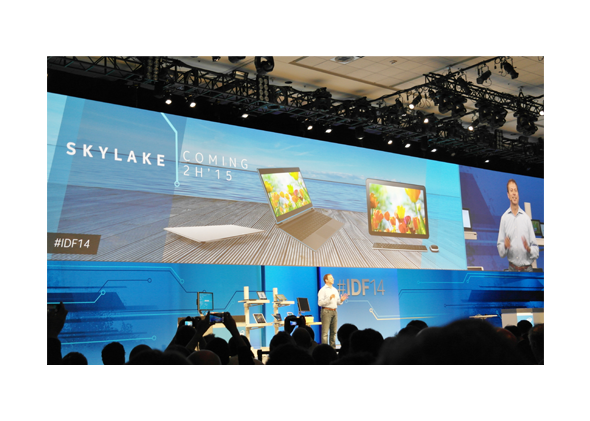
    A quick guide to the new Intel Core i-series processors

    Would you buy a new computer with a 3.3GHz Core i5 processor, or a 2.66GHz Core i5 processor?

    The choice seems obvious at first and I notice a lot of retailers subtly exploiting complexities of core models and steppings to sell cheaper computers. In the above example the 2.66GHz processor would be your best choice because it’s more powerful, offers greater multitasking capabilities with four cores instead of two cores in the 3.3GHz model.

    You can download the whitepaper at our computers perth page in a jargon-free friendly format and get a heads up on buying a new PC.


    External monitor on laptop with lid closed

    In the first of our neat tips for Windows 7 you can use an external monitor with the lid closed on your laptop.

    Just configure advanced power options

    1. start. Type “Power options”

    2. on the left hand pane click on what to do when lid closes

    3. choose the option to do nothing

    Enjoy your external monitor.